
Receipt and expense report exports to PDF, CSV and XLSX
Save one receipt as a PDF from its detail screen, or build a report and export it as PDF, CSV or XLSX. The images travel with the export.


- Single receipt to PDF
- Reports to PDF, CSV and XLSX
- Original images included
Report
From a pile of receipts to a report in three steps
Everything you scanned is already itemized, so building the report is selecting, checking and exporting.
Select
Pick receipts from the Receipts or Statistics tab, or filter by date and tag, and add them to a report.
Review
Check the total, the spending breakdown and the split by tag. Foreign receipts are converted to your currency at the receipt-date rate, shown as an approximation.
Export
Share a PDF with the receipt images embedded, or a CSV or XLSX with the original images alongside.
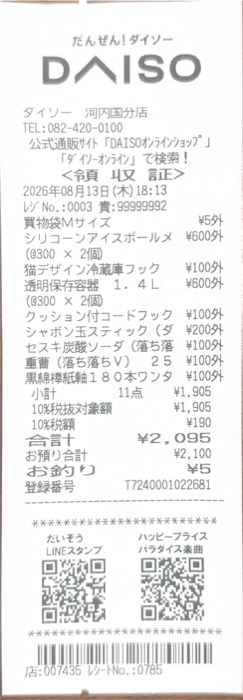
Extract
One photo becomes a structured receipt
ReceiptGenie does not stop at the total. Each scan is saved as a record you can edit, search, tag and export.
- Merchant
- Cleaned-up store name, not the till header.
- Date and time
- From the receipt, converted to the right timezone.
- Currency and total
- Detected from the receipt, best for international travel.
- Tax, tips and discounts
- Kept as separate lines.
- Line items
- Quantity, unit price and amount per item.
- Tags
- Suggested by AI based on your own categories.
Questions before you scan
Which formats can I export?
PDF, CSV and XLSX. PDF reports embed the receipt images; CSV and XLSX exports come with the original images alongside.
Can I export just one receipt?
Yes. Every receipt has Save as PDF on its detail screen; the PDF includes the fields, the line items and the receipt image.
Can I export receipts into Excel?
Yes. Export a report as CSV or XLSX. The original receipt images come along with the spreadsheet, and PDF reports embed them.
Export guideAre the original receipt images kept?
Yes. Every receipt keeps its photo or PDF in the app. PDF reports embed the images and spreadsheet exports include them alongside.
Is exporting free?
Report exports are part of Premium. The 25 free Smart Scans include the scanner, tags, search and statistics, so you can try the whole flow before subscribing.
Build your next expense report from receipts
Download ReceiptGenie, scan the receipts you have, and export a report your accountant can open.
Free to download on the App Store and Google Play.